The Abilities Page
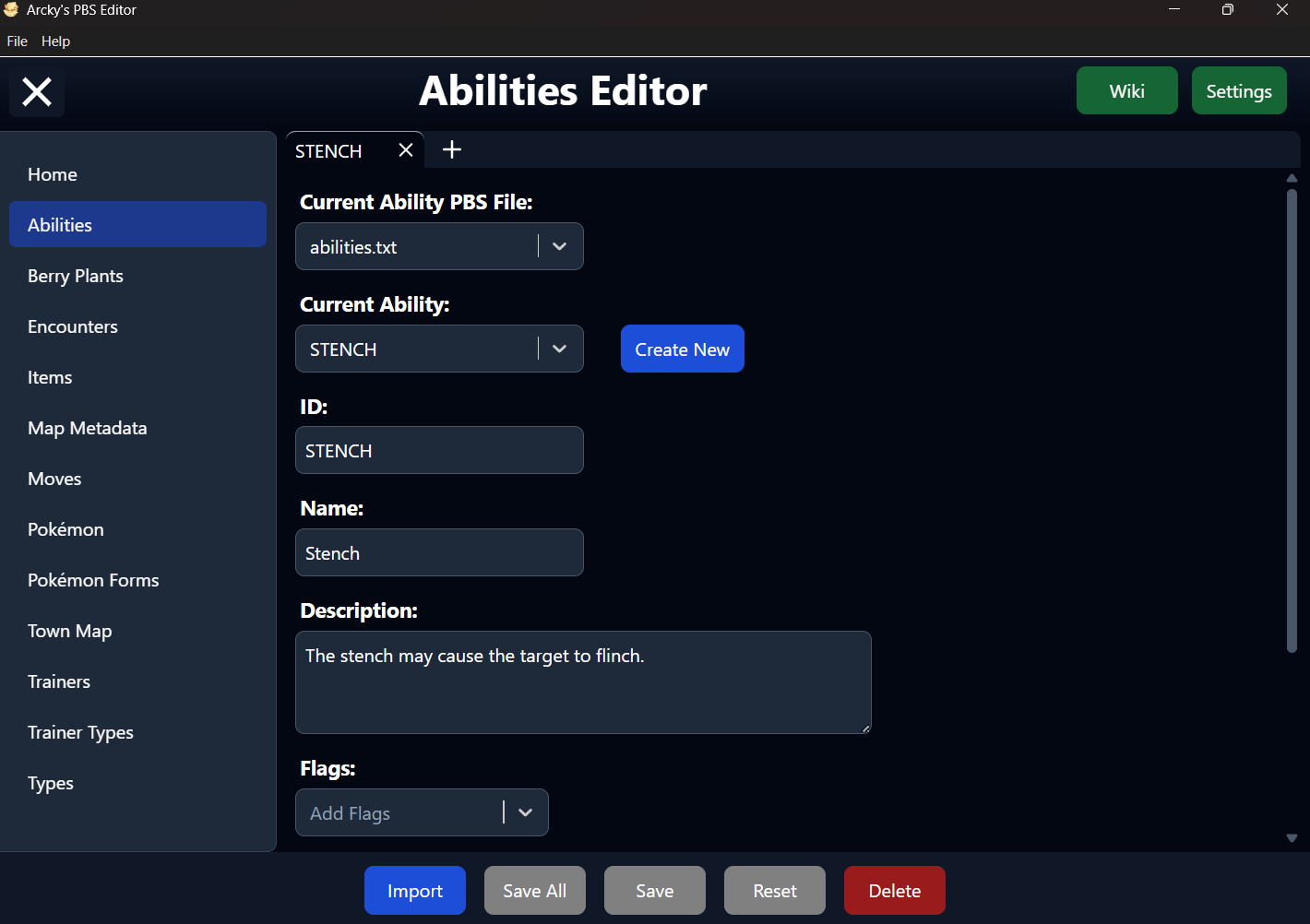
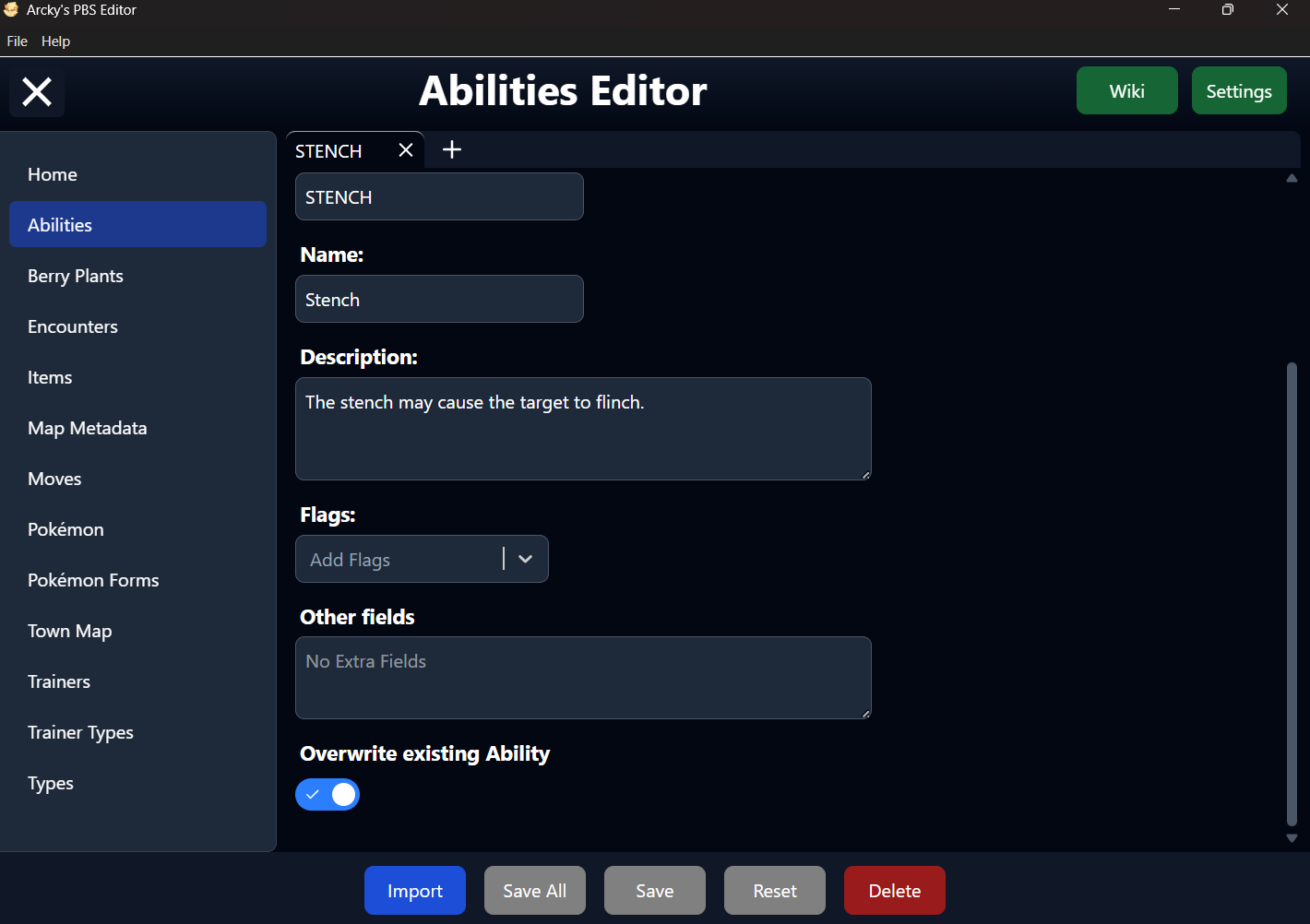
The Abilities Editor Page of the PBS Editor.
Table of Contents
Overview
The Abilities page is the dedicated editor within the PBS Editor for viewing and modifying all Ability PBS data in your project. It provides a structured interface to inspect and edit every Ability entry without needing to work directly with raw PBS files.
All default parameters defined by Essentials are presented in a clear and consistent layout, making it easy to understand and manage Ability data at a glance. In addition, any fields introduced through plugins or custom extensions are automatically detected and displayed when present.
These extra properties are grouped under the Other Fields section, allowing the editor to remain clean and organized while still supporting extended functionality.
The screenshots below illustrate the general layout and structure of the Abilities editor. They serve as a visual guide to help you quickly locate sections and understand how information is organized within the interface.
Detailed explanations of individual parameters are provided in the sections that follow. For deeper technical insight or engine-level behavior, refer to the official documentation:
Wiki
On the top-right corner of the Ability Editor, you'll find the Wiki button. This provides quick access to the official Essentials documentation for Ability definitions.
Clicking this button will open the following page in your browser: Defining an Ability
This resource contains detailed technical documentation for every parameter available in an Ability PBS entry, including engine-level behavior and supported values. It's especially useful when you need deeper insight beyond what's shown in the editor.
Settings
Located next to the Wiki button in the top-right corner of the Ability Editor, the Settings button provides quick access to the PBS Editor configuration.
When opened, it displays a filtered view of the settings panel, showing only the General Settings and the Ability Editor Settings relevant to this page.
The Ability Editor currently includes the following option:
- Ability Flags — Allows you to add or remove custom ability flags, enabling the editor to properly recognize and handle them within Ability entries.
Import Abilities
To import one or more Abilities into the editor, your data must be provided in a TSV (Tab-Separated Values) file.
The easiest way to create this format is by using Google Sheets, which allows you to quickly organize your data and export it directly as a TSV file.
For reference, you can use the following example as a template for structuring your data correctly: TSV Abilities Example
Required Fields
Each Ability entry must include the following required parameters:
- ID
- Name
- Description
If any of these fields are missing, the editor will skip the entry and report which required values are not present—helping you quickly identify and correct issues in your file.
File Selection
This dropdown allows you to choose between all available Ability PBS files detected in your project.
The primary file is typically named abilities.txt, but the editor also supports additional files following the format abilities_xxx.txt.
The underscore (_) is required for these extra files to be recognized. Any text can follow it (e.g. abilities_custom.txt), but files without this naming pattern will not be detected as Ability PBS files.
If only a single file is available, the dropdown will be automatically disabled, and that file will be selected by default.
Ability Selection
This dropdown lists all available Ability entries for the currently selected file, identified by their ID.
In the PBS file, these IDs are defined using the format [xxx]. For improved readability, the editor displays them without brackets in the interface.
Despite this visual simplification, the brackets are still required in the actual PBS structure. When saving, the editor will automatically restore the correct [xxx] format, even though it is not shown within the editor itself.
ID
The ID serves as the internal identifier used by the engine to reference an Ability. Each Ability must have a unique ID to function correctly.
In most cases, the ID mirrors the Ability's name, formatted in ALL CAPS and without spaces or special characters (e.g. OVERGROW, LEVITATE). To help prevent errors, the editor will automatically filter out invalid characters as you type.
Within the PBS file, the ID defines the start of a new Ability entry and must always appear first in each block. This structure is handled automatically by the editor when saving, so no manual formatting is required.
Name
The Name defines the display name of the Ability as shown to the player in-game.
This is the human-readable label used in menus, summaries, and battle interfaces, making it an important part of how the Ability is presented to the player.
Default Value
The Name field is optional, but no default value is assigned by the editor.
If left undefined, the Ability's Name will be Unnamed
Description
The Description provides a short explanation of what the Ability does in-game.
This text is displayed to the player in places such as menus or summary screens, helping them understand the Ability's effect and purpose.
Default Value
The Description field is optional, but no default value is assigned by the editor.
If left undefined, the Ability's Description will be ???
Flags
The Flags field is a multi-select dropdown, allowing you to assign multiple values to an Ability at the same time.
All selected Flags are stored in the PBS file as a comma-separated list, ensuring compatibility with the underlying data format.
The available options in this dropdown can be managed through the Ability Editor Settings, located in the general Settings menu of the PBS Editor.
Default Value
Flags do not have a default value.
Options
By default, the editor includes the following Flag:
- FasterEggHatching
Additional Flags can be added or removed via the Ability Flags section in the Settings menu, allowing full customization of available Flag options.
Other Parameters
Any custom parameters present in your Ability PBS files that are not recognized by the editor will automatically be grouped under the Other Fields section.
These values are preserved exactly as they appear in the original file, without modification or reformatting.
When saving, the editor will write these fields back unchanged, ensuring that plugin-specific or engine-modified data is never lost or corrupted.
Ability Overwrite
This toggle determines how the editor handles saving the current Ability entry.
- On — The editor will overwrite the existing Ability entry that matches the current ID across the selected PBS file. This is the default mode.
- Off — The editor will save the entry as a new Ability entry, but only if the ID does not already exist in any loaded Ability PBS file. If a matching ID is found anywhere, the entry cannot be saved.